Widgets for Chromebook, on every new tab.
Put a clock, the weather, sticky notes, a to-do list or a pixel pet on your Chromebook's new tab page. Tab Widgets has 80+ widgets to choose from.
These widgets are on the new tab page. They can't go on the ChromeOS desktop or home screen. What you can put on the desktop
No account needed · Free to use
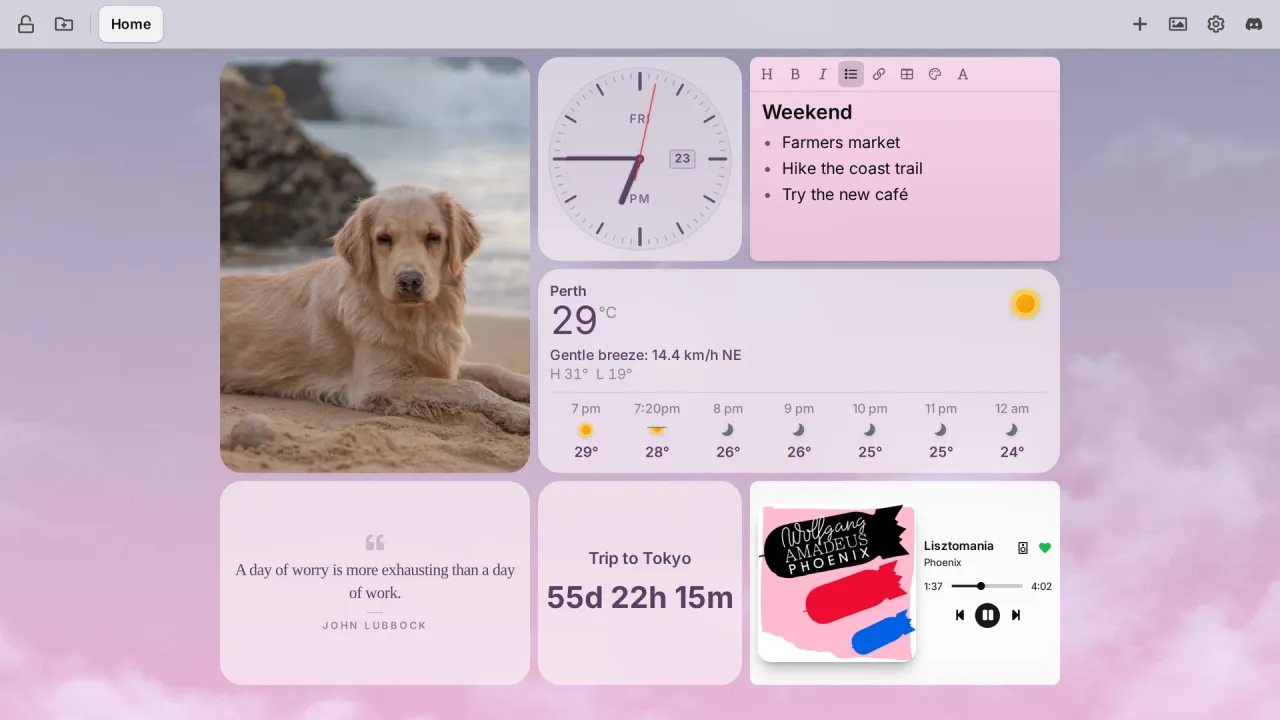
The photo and Spotify widgets and the pastel styling shown here are part of Pro.
Can you get widgets on a Chromebook desktop?
Not from ChromeOS itself. Google lists Android's home screen widgets among the features Chromebooks don't support. If the desktop is where you want something, this is what we found when we checked in November 2026:
- Your photos. Right-click the desktop and choose Set wallpaper & style. The wallpaper and screen saver can both use Google Photos, and the wallpaper can change daily. School and work accounts don't get the screen saver.
- Your calendar. Select the date at the bottom right of the screen to open a calendar with your events and Google Tasks. It's free and already on your Chromebook.
- Android widgets. Older guides use an Android app called Taskbar as a workaround. Its code hasn't been updated since 2024, and we haven't tested it on current ChromeOS.
- Googlebook. Google's newer Googlebook laptops do have widgets on the Home screen. Google says many of its newest Chromebooks will be able to move to Googlebook OS, but hadn't said which ones when we checked.
- A floating widget. Tab Widgets can pop a widget out into a small window that stays above your other windows, where your version of Chrome supports picture-in-picture. It's one widget at a time, and it closes with the tab it came from.
Find the widgets you're after.
The free plan has up to 10 widgets and 2 pages or dock spaces. Free* means free, with extras in Pro.
Clock widgets
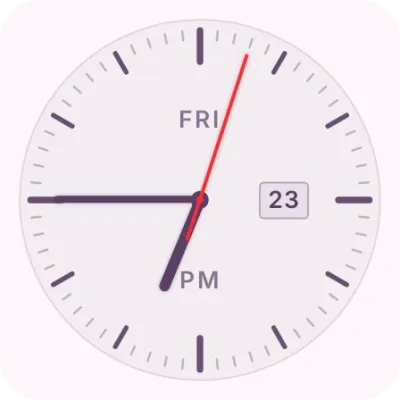
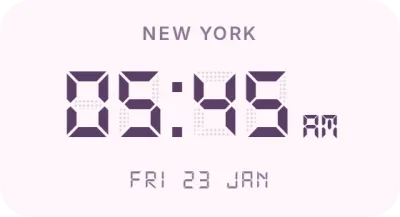
Pick an analog, digital or flip clock. Each shows the time where you are or in a city you choose, with the date if you want it. The time zones list is handy when family or classmates are overseas.
- Analog ClockFree
- Digital ClockFree
- Flip ClockFree
- Time ZonesFree
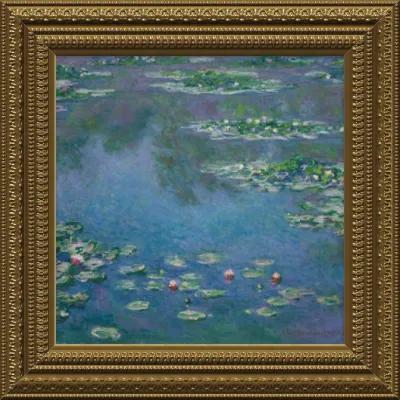
Photo widgets
The Image widget shows your own photos, with a random one each time you open a new tab. It's part of Pro. On the free plan you can set one of your photos as the new tab wallpaper, or add the Art widget for a classic painting.
Calendar widgets
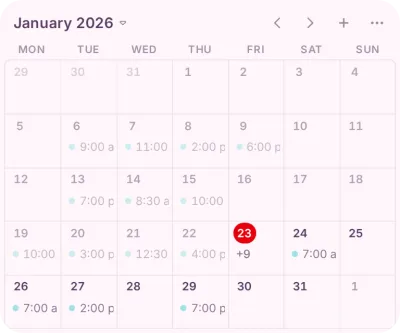
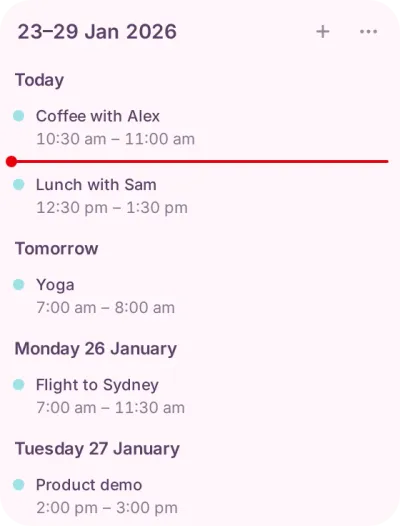
See your Google Calendar as a month or week, or as a list of the day's or the week's events, and add or edit events from the widget. All of them are Pro. The countdown is free, for an exam, a birthday or a trip.
Sticky notes and to-do lists
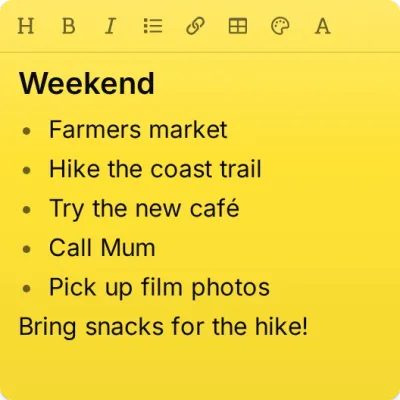
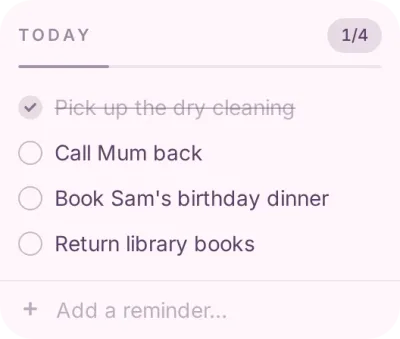
Sticky notes come in different colors and fonts, and take headings, lists, links and tables. Reminders is a checklist you can tick off. Google Tasks needs Pro, and keeps the lists you already have in Google.
- Sticky NoteFree*
- RemindersFree
- Google TasksPro
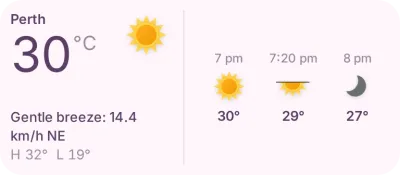
Weather widget
Choose your town to see the temperature now, today's high and low, and the hours ahead, in Celsius or Fahrenheit.
- Weather ForecastFree
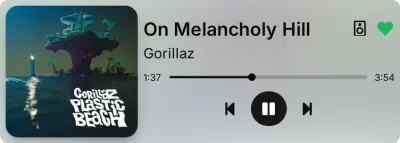
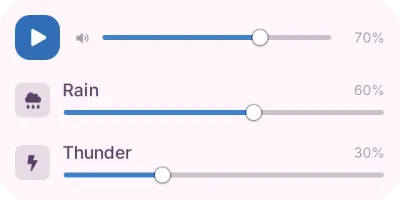
Music and stocks
The Spotify widget shows what's playing. Play, pause and skip need Spotify Premium as well as Tab Widgets Pro. TradingView's charts and tickers are Pro too. Ambient Sounds is free, with rain, ocean, forest and more to mix.
Cute and aesthetic widgets, and a virtual pet
Pixel-art dogs and cats live in the Pets widget, in a park, on a beach or on a basketball court. Throw a ball, drop a treat, or shoot some hoops. The free plan has 1 pet per widget; Pro has up to 5, and Exotic breeds such as a capybara or a baby dragon.
For the look, use your own photo or a GIF as the wallpaper, or search the photo library. The Light, Dark, Paper and Midnight themes are free. Pastel, Glass and the rest are Pro.
- PetsFree*
- Flip ClockFree
- QuotesFree
- ArtFree*
How to add widgets on a Chromebook
Add it to Chrome
Sign in to your Chromebook (extensions can't be added in Guest mode), open Tab Widgets in the Chrome Web Store and select Add to Chrome. Check what it asks for, then select Add extension.
Open a new tab
Press Ctrl + T. If Chrome asks about the changed new tab page, choose Keep it. You don't need an account.
Add your widgets
Select Add widget (+) in the top bar and pick one. Turn on Edit mode to drag widgets around and resize them.
Make it yours
Open Settings for a wallpaper and a theme. The getting started guide covers pages and the dock.
School Chromebooks, and the web version
Schools and workplaces often block extensions on the Chromebooks they manage. Google's help page says you may not be able to add one at work or school. If the Chrome Web Store says it's blocked, ask whoever manages your Chromebook. If you're the one who manages them, Tab Widgets for Teams is in early access.
There's also a web version that runs as an ordinary web page, if you'd like to try Tab Widgets before installing it. It isn't a way around your school's rules, and a managed Chromebook may block it too. It also does less than the extension:
- It doesn't replace your new tab page. You open it like any other site, so you may want to bookmark it.
- It doesn't have these widgets, which need the extension's access to your browser: Bookmarks, CPU Widget, Memory/RAM Widget, Recently Visited, and Top Websites.
- Some sites won't load in an embed widget, as they refuse to show inside another web page.
- Alarms and timers only ring while a Tab Widgets tab is open.