How to Add Google Tasks to Your New Tab Page in Chrome
Put Google Tasks on Chrome's new tab page: set up the widget, add and tick off tasks, see what it can't do, or use a free to-do list instead.
Published
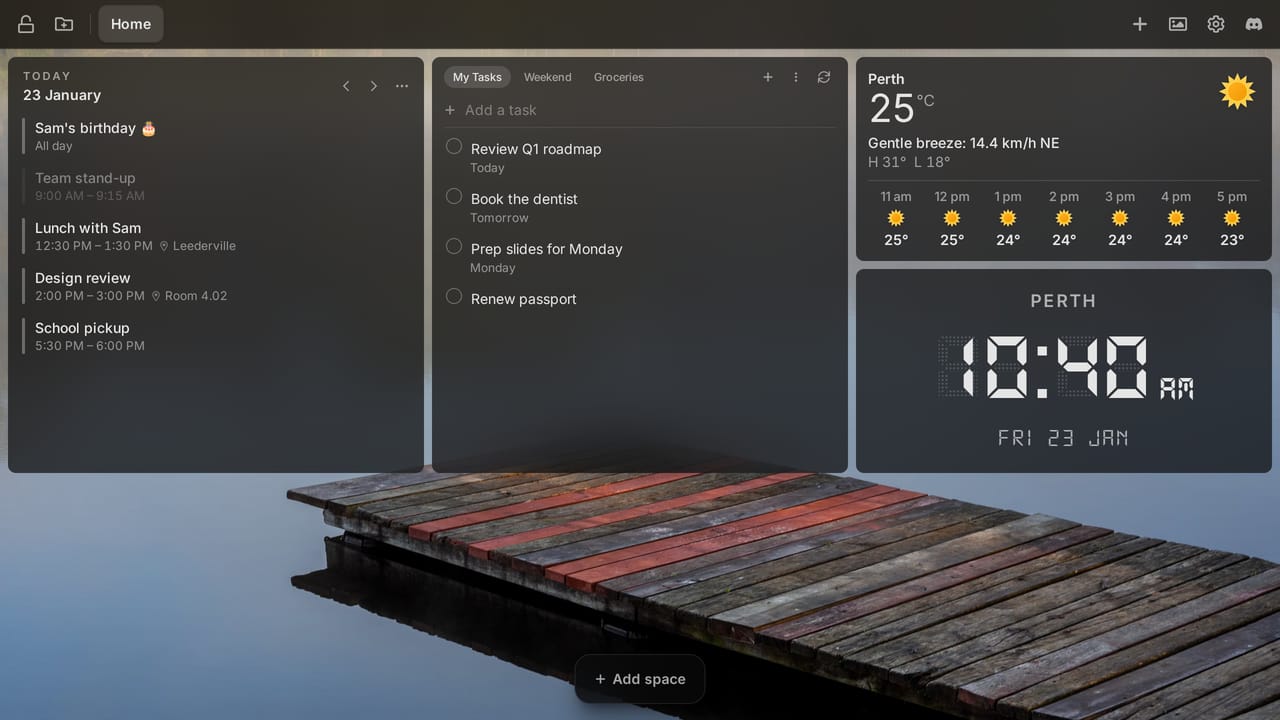
You can put your Google Tasks lists on Chrome's new tab page with Tab Widgets: install the extension, add the Google Tasks widget and sign in with Google. You can then add, tick off and edit tasks on any new tab.
Google Tasks is a Pro widget. Tab Widgets is free to install, but this widget needs Tab Widgets Pro. If you only want a simple checklist, there's a free to-do list widget, compared below.
If You Want a Desktop Widget, Read This First
This widget lives on your browser's new tab page. It isn't a Windows or Mac app, and it won't appear on your desktop or in the Windows 11 widgets board.
The closest it gets is Picture-in-Picture, in Chrome and Edge on a computer. That opens the widget in a small window that stays on top of your other apps. The window belongs to the tab you opened it from, so it closes if you close that tab or go to a website in it. You can have one widget popped out at a time.
If neither suits you, there are other ways to see Google Tasks on a computer:
- Google's own views. Google doesn't list a desktop app. Its help page points you to Tasks in Google Calendar, or the side panel in Gmail, Calendar, Drive and Docs. These are free.
- A full-screen board. TasksBoard is a web app that shows each Google Tasks list as a column on a kanban board. It has a free plan, and paid plans add features such as calendar view and labels. It's a better fit for seeing all your lists side by side.
How to Add Google Tasks to Your New Tab Page
Step 1: Install Tab Widgets
Install it from the Chrome Web Store or Microsoft Edge Add-ons, then open a new tab. If you can't install extensions, there's also a web version.
Step 2: Add the Widget
- Click the + (Add widget) button at the top of the page
- Search for Google Tasks
- Click Add widget
If you aren't on Pro yet, this is where you'll be asked to upgrade.
Step 3: Sign In With Google
Click Sign in with Google and allow Tab Widgets to see and change your tasks. Google Tasks connects separately from the Gmail, Calendar and Drive widgets, so you do this once even if you already use those. You also sign in once on each device.
Step 4: Choose Your Lists
- Leave Show lists as tabs on to show several lists in one widget. Every list starts as a tab: untick the ones you don't want, and drag the rest into order.
- Or turn it off and pick a single List.
- Tick Show completed if you want finished tasks below the open ones.
- Click Create widget.
Then drag the widget where you want it and resize it. You can add more than one.
What You Can Do From the Widget
Tasks
- Add a task by typing in Add a task and pressing Enter. It goes to the top of the list.
- Tick off a task by clicking its circle. With Show completed on, you can untick it again later.
- Edit the title, notes and due date by clicking the task's title. Due dates show as Today, Tomorrow, a weekday or a date, and overdue ones are red.
- Reorder tasks by dragging them. The new order is saved to Google.
- Add subtasks from the task's menu, and drag them into order under their parent.
- Move a task to another of your lists with Move to.
- Delete a task, with a few seconds to undo it.
Lists
- Create a list with the + next to the tabs.
- Rename or delete a list from the menu beside the tabs. Deleting a list removes every task in it from Google for good, so the widget asks you to confirm first. Google doesn't allow your default list to be deleted.
Tasks you made from a Gmail message link back to the email. Tasks assigned to you from Google Docs or Chat show where they came from. You can tick those off and reorder them, but you edit or delete them where they were assigned.
Pop it out: turn on Edit mode (the padlock at the top left), open the widget's options menu (the arrow on its toolbar) and choose Picture-in-picture.
How Syncing Works
Syncing goes both ways. What you change in the widget is saved to your Google account straight away, so it's there in Google Calendar, Gmail and the Tasks app on your phone. The exception is deleting a task, which waits a few seconds so you can undo it.
What you change elsewhere appears when a list next loads. That happens when you open or come back to a new tab more than 5 minutes after the list last loaded, or when you click the refresh button. A tab or pop-out window you leave open doesn't check Google in the background, so click refresh if you've just added something on your phone.
Your task titles, notes and dates go between your device and Google. They're cached in your browser, not stored on our servers.
What It Can't Do
- Due times. You can set a date, but not a time. Google doesn't let other apps read or write times.
- Repeating tasks. The current occurrence shows up and can be ticked off, but you set up and change the repeat in Google. Deleting one in the widget removes only that occurrence, and repeating tasks can't be moved to another list.
- Reminders and notifications. The widget shows overdue tasks in red but doesn't alert you.
- Starred tasks, sorting by date, or one combined view. Each list is shown on its own, in Google's "My order".
- Changes while offline. You can see the tasks that last loaded, but not add or change any until you're back online.
- Two Google accounts. All your Google Tasks widgets on a device use the same account.
- Very long lists. It shows up to 1,000 open tasks per list, and up to 100 completed in the last 30 days.
Google Tasks or the Free To-Do List?
Tab Widgets also has a to-do list widget, called Reminders in the app. It's free and works without any account.
- Choose Google Tasks (Pro) if your tasks are already in Google, you want them on your phone, or you need due dates, notes, subtasks or several lists.
- Choose Reminders (free) if you want a checklist on your new tab and nothing more. You can add, edit, tick off, drag and delete items, and hide completed ones. Despite the name, it has no due dates or alerts, and it doesn't sync with Google. Without Pro, the list stays in the browser you made it in.
If you don't already use Google Tasks, try Reminders first. The pricing page lists what else Pro includes.
FAQ
Is this a Google Tasks desktop widget for Windows 11?
No. It's on your browser's new tab page, not the Windows desktop or the Windows 11 widgets board. In Chrome and Edge you can pop it out into a small window that stays on top while the tab you opened it from stays open.
Do changes sync both ways with Google Tasks?
Yes. Changes you make in the widget are saved to your Google account, and changes made in Google show up in the widget. They load when you open or come back to a new tab more than 5 minutes after the last load, or click refresh.
Does the widget support due times and repeating tasks?
Only in part. You can set due dates but not times, and tick off a repeating task's current occurrence but not change how it repeats. Google doesn't make due times or repeat settings available to other apps.
Is the Google Tasks widget free?
No. Tab Widgets is free to install, but the Google Tasks widget needs Tab Widgets Pro. The Reminders widget is a free to-do list that doesn't connect to Google.