How to Add a Clock to Your New Tab Page in Chrome
Add a digital, analog or flip clock, or a world clock list, to Chrome's new tab page for free. Which one to choose, which show seconds, and how to set each up.

Published
Chrome's own new tab page doesn't have a clock, so you need an extension to add one. This guide uses Tab Widgets, which replaces the new tab page with a dashboard of widgets. It's free on Chrome and Edge, and it has four clocks: digital, analog, flip and a world clock list.
One thing to know first: the clock lives on your new tab page, not on your desktop. You see it each time you open a tab. If you want one over your other windows, you can pop it out into a floating window, as long as the tab it came from stays open.
Which clock should you choose?
| Widget | Best for | Seconds | 12 or 24 hour |
|---|---|---|---|
| Digital Clock | A large time you can read from a distance | No | Either |
| Analog Clock | A watch face with a moving second hand | Always, as a tick or a sweep | 12-hour face, with AM/PM |
| Flip Clock | A decorative retro clock | No | Either |
| Time Zones | Several cities in one list | Optional | Either |
In short:
- For an aesthetic clock with seconds, choose Analog Clock with a sweeping second hand.
- For the flip clock look, choose Flip Clock, but note that it has no seconds. Its cards turn when the minute or hour changes.
- For seconds as digits, choose Time Zones, remove every city but your own and turn on Seconds. It's plainer than the other three.
- For a world clock, choose Time Zones. Two or three single clocks also work if you want the faces side by side.
Add a clock to your new tab page
- Install Tab Widgets from the Chrome Web Store or Microsoft Edge Add-ons, then open a new tab.
- Click the Add widget (+) button in the top bar.
- Search for clock (or time zones) and click Add widget on the one you want.
- Choose its settings. The preview at the top updates as you go.
- Click Create widget.
To move or resize it, turn on Edit mode in the top bar, drag the widget by its toolbar, or drag a bottom corner. The three clock faces scale with the widget. The gear on the toolbar (Configure widget) reopens its settings.
Switch between 12 and 24-hour time
This is one setting for the whole dashboard. Open Settings → General and, under Date and Time, choose 12 hour or 24 hour. Digital Clock, Flip Clock and Time Zones all follow it.
Set up each clock
Digital Clock
A large LCD-style time that fills the widget.
- Search location: it starts on your own time zone. To show another city, type its name and pick it from the list.
- Clock features: turn Date, Day, Month, AM/PM, Location and Relative time difference on or off. For your own time, turn off Relative time difference, or it shows +0H.
- Unlit segments: how the unlit parts of each digit look, like a real LCD. Choose None for plain digits, or one of six styles such as Outline, Dot matrix and Hatched.
If you use 24-hour time, turn off AM/PM here too, as it's a separate option. The LCD font is fixed.
Analog Clock
A round face with hour, minute and second hands.
- Search location and Clock features work as they do on Digital Clock. The day, date, month and AM/PM sit on the dial.
- Clock face: Match app theme, Light or Dark.
- Second hand: Tick moves once a second. Sweep moves in small steps, like a mechanical watch. If your system is set to reduce motion, it ticks either way.
The second hand can't be hidden.
Flip Clock
A retro clock with each digit on a card that flips over.
- Location: leave it empty for Local time, which follows your computer when you travel, or search for a city and pick it. The city's name then appears above the cards.
- Show AM/PM and Show date: the date is the weekday, day and month. AM/PM hides itself in 24-hour time.
- Card style: Match app theme, Dark or Light.
- Font: Oswald, Bebas Neue, Barlow Condensed or Inter Tight.
It's the only one of the four with a choice of fonts. You can change the colours of its cards and digits too, as below.
Time Zones
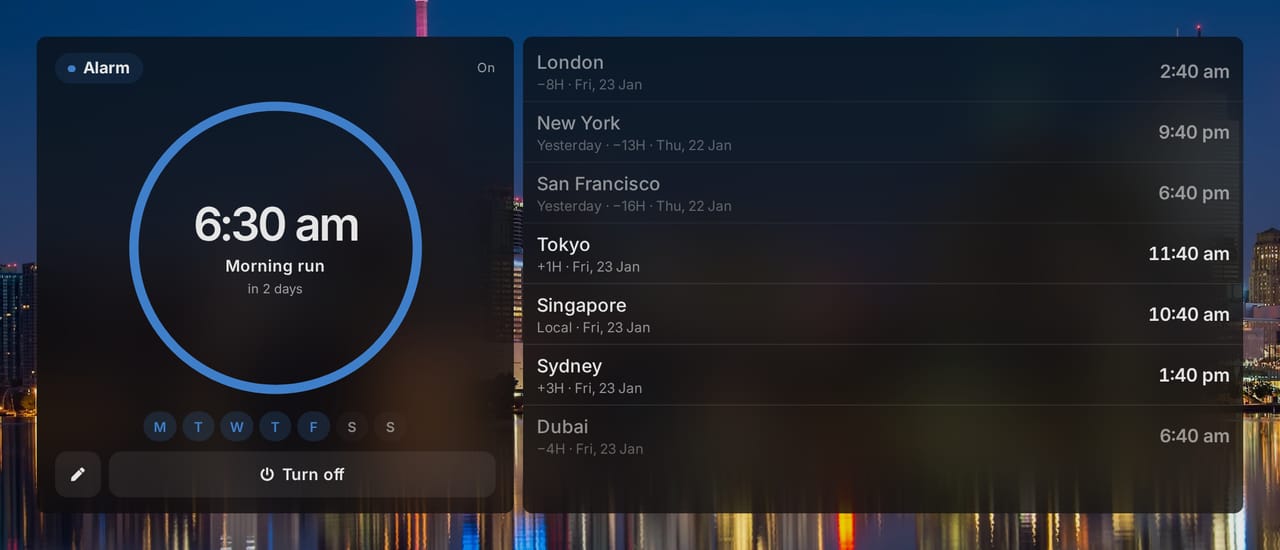
A list with a row for each city, up to 12.
- Cities: it starts with your own location, New York City, Los Angeles, London, Tokyo and Sydney. Remove any you don't need and use Search location to add others. Drag them into order.
- Label: give a row your own name, such as a colleague's or an office's.
- Display: turn Date, Day difference, Relative time difference and Seconds on or off. Day difference shows when it's already tomorrow, or still yesterday, in that city.
Rows are dimmed when it's outside 9:00 to 18:00 in that city, so you can see who's likely to be at work.
Change how the clock looks
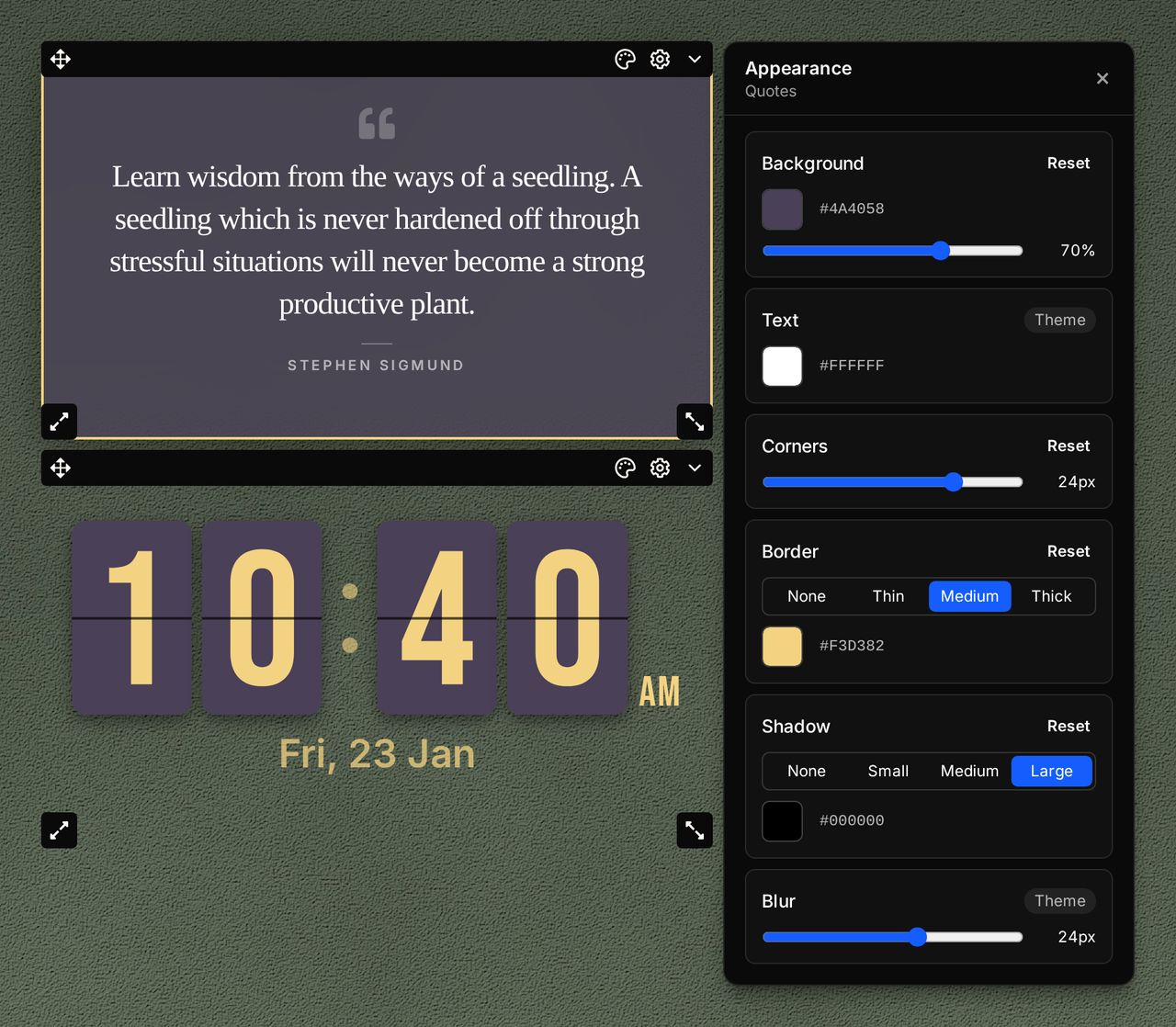
Each clock follows your theme, and you can restyle any one of them, also for free. Turn on Edit mode and click Appearance (the palette) on the clock's toolbar to change its Background, Text, Corners, Border, Shadow and Blur.
- Clock straight on your wallpaper: drag the background's opacity to 0% and set Blur to 0.
- Flip Clock: Card colour and Digit colour set the cards apart from the rest.
- Analog Clock: there's no Text here, so use Clock face in its settings for a light or dark dial.
Pop the clock out of the tab
In Chrome and Edge, you can open any of the four in a small window that stays on top:
- Turn on Edit mode.
- Open the clock's Widget options menu (the arrow on its toolbar).
- Choose Picture-in-picture.
You can resize the window and have one open at a time. It closes when you close the tab it came from, so keep that tab open. There's more in our guide to Picture-in-Picture.
On a Chromebook, or without installing
Tab Widgets installs from the Chrome Web Store on a Chromebook as it does on Windows, Mac or Linux. See widgets for Chromebook for what else you can add. If you'd rather not install anything, all four clocks are also in the web version. It's an ordinary web page, so bookmark it: it won't open by itself in each new tab.
Frequently asked questions
Are the clock widgets free?
Yes. Digital Clock, Analog Clock, Flip Clock and Time Zones are all free, including every setting in this guide. The free plan holds up to 10 widgets in total, and you don't need an account.
Which clocks can show seconds?
Analog Clock always has a second hand, and Time Zones has a Seconds option. Digital Clock and Flip Clock show hours and minutes only.
Do they work on a Chromebook?
Yes, on the new tab page in Chrome. If your school or work manages your Chromebook and blocks extensions, ask whoever manages it. They don't go on the ChromeOS shelf or lock screen.
Can I put the clock on my desktop?
No. The clocks are part of a browser page, so they can't be placed on your wallpaper. You can pop one out into a small floating Picture-in-Picture window that stays on top of other windows while its Tab Widgets tab is open.