How to Add Google Calendar to Your New Tab Page in Chrome
Put Google Calendar on your Chrome new tab page as a day list, a week list or a full month, week or schedule view. Which widget to pick, and how to set it up.

Published
You can add Google Calendar to Chrome's new tab page with Tab Widgets, an extension for Chrome and Edge. Install it, add a Google Calendar widget, and sign in with Google. Your events are then on every new tab you open, and you can add, edit and delete them there.
The Google Calendar widgets are part of Tab Widgets Pro. The extension is free to install, but you need Pro to add a calendar.
There are three of them, so the main decision is which one to add.
Which Google Calendar widget should you add?
| Day Agenda | Week Agenda | Google Calendar | |
|---|---|---|---|
| Shows | One day, as a list | The next 7 days, as a list | A month, a week, or a list |
| Other dates | Yes, any day | No, always starts today | Yes, any date |
| Empty days | "Nothing planned" | Left out, except today | Shown in month and week |
| Space it needs | Small | Narrow and tall | Large for month and week |
| Best for | What's on today | What's coming up | Planning and finding a gap |
You can add more than one, and they all work with the same Google sign-in.
Google Calendar Day Agenda
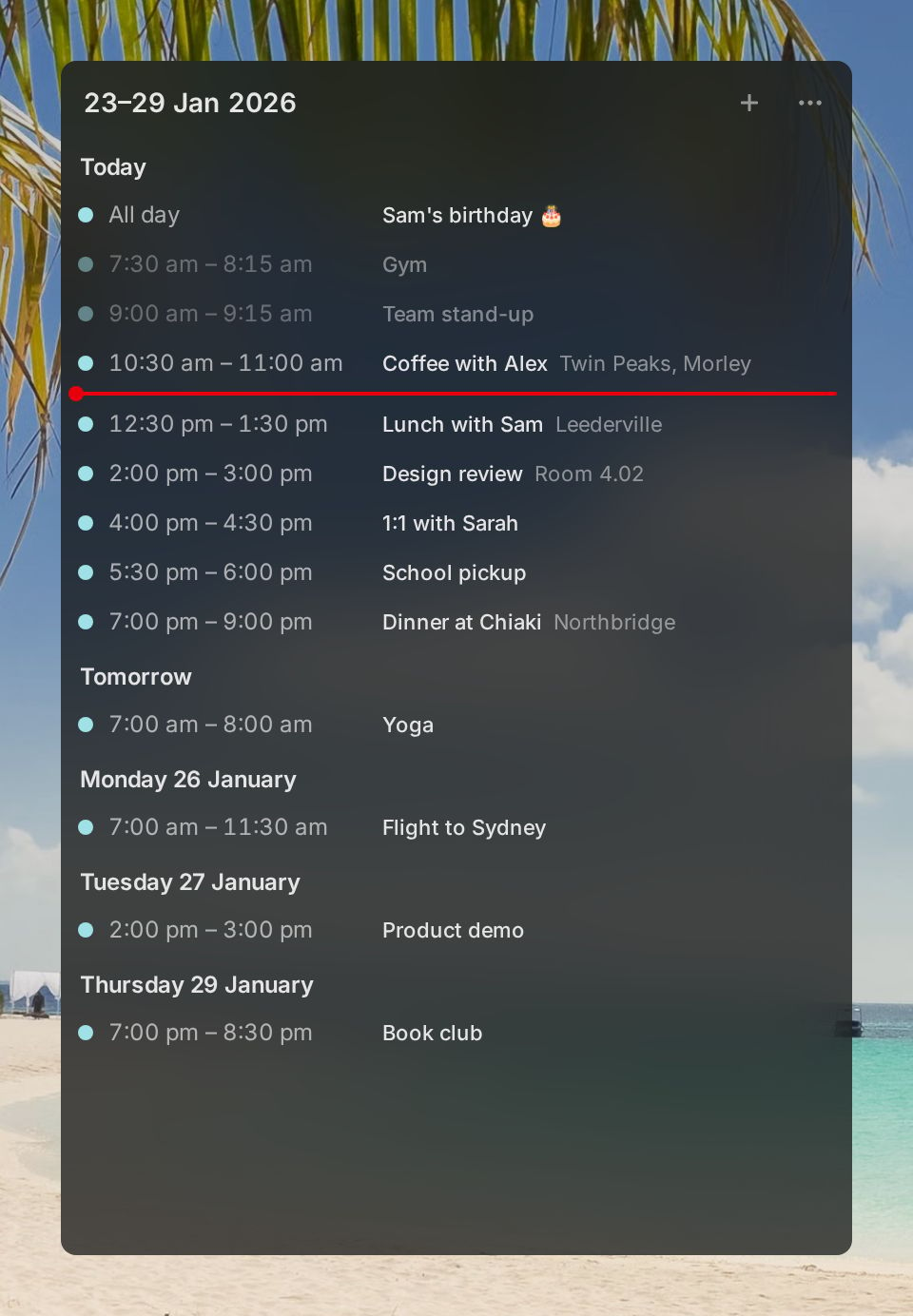
Day Agenda lists a single day. All-day events come first, then the rest in order, each with its time, title and, when there's room, location. On today, a line marks the current time and finished events fade.
It opens on today. The arrows move a day at a time, and clicking the date opens a small calendar to jump to any other day.
Choose it for a small space beside your inbox or to-do list, or when one busy day is all you want to look at.
Google Calendar Week Agenda
Week Agenda lists today and the next six days, grouped under headings such as Today, Tomorrow and Thursday 29 January. Days with nothing on are left out, so a quiet week stays short.
It has no arrows or date picker. It always starts at today, and it moves on by itself after midnight if you leave the tab open.
Choose it when you want to know what's on later in the week. If you aren't sure which of the three to try, start here.
Google Calendar (month, week and schedule)
Google Calendar is the full calendar, with three views:
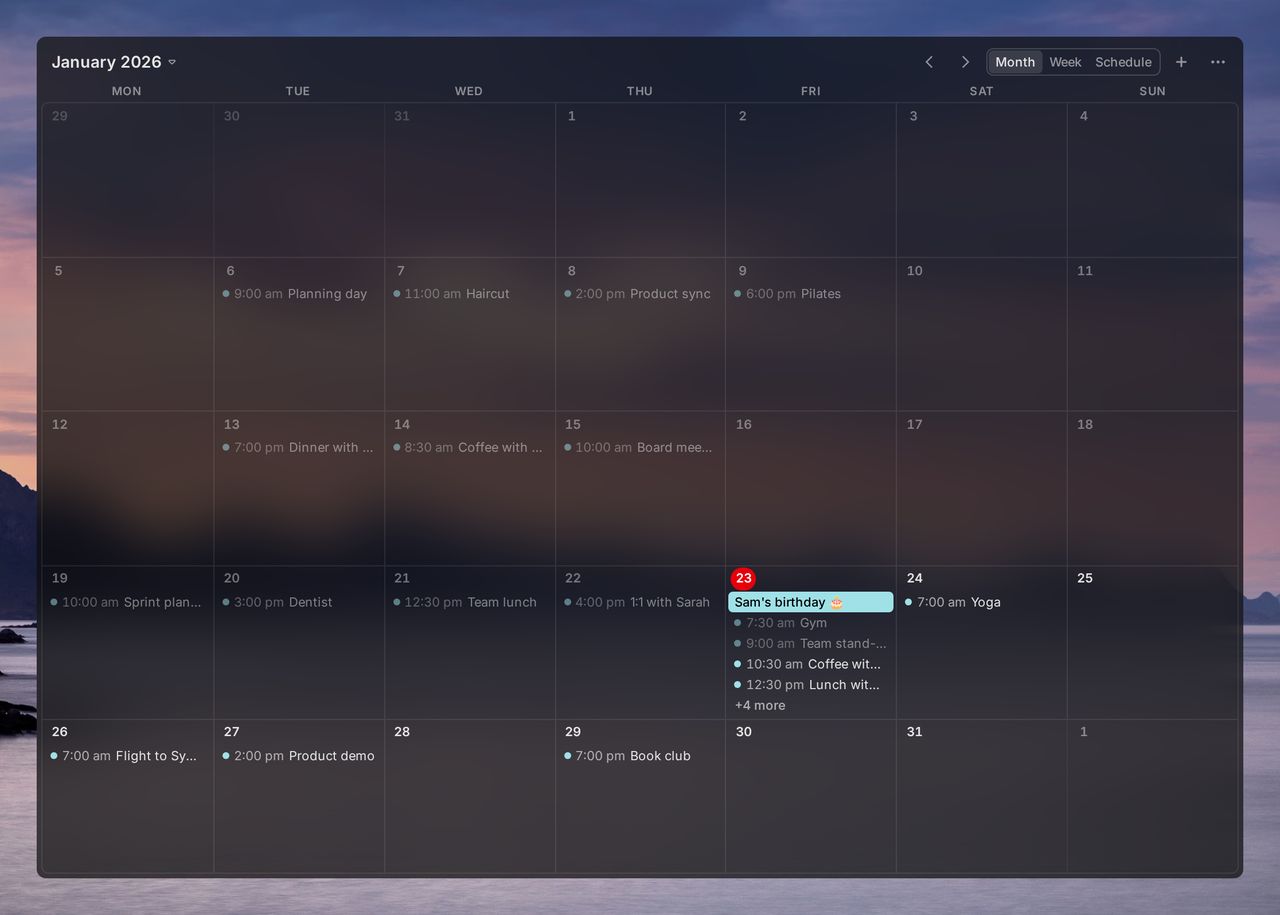
- Month is a grid of the whole month. When a day has more events than fit, "+2 more" opens the full list.
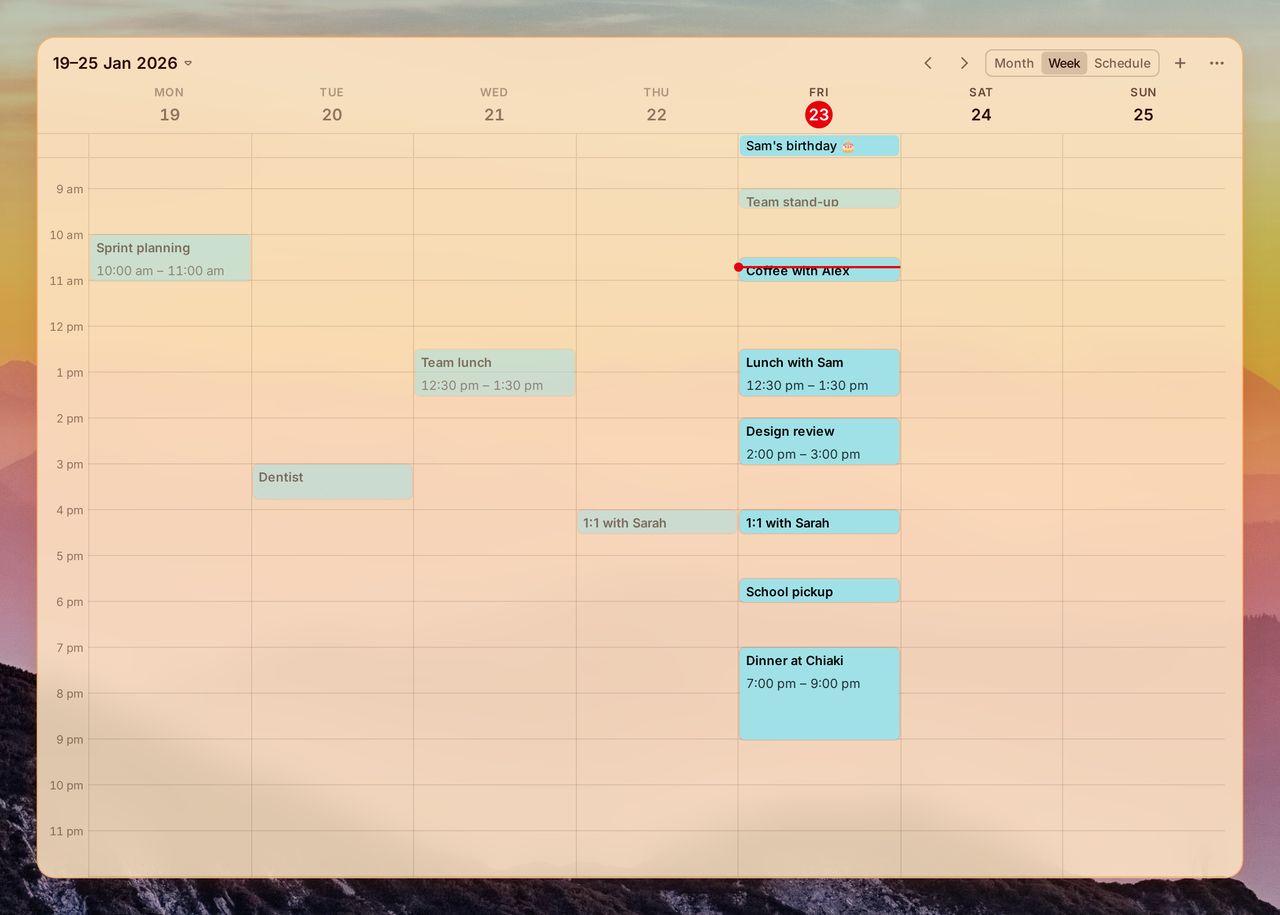
- Week lays events out by the hour, with all-day events along the top. In a narrow widget it shows three days instead of seven.
- Schedule is a list of your coming days that keeps loading as you scroll.
Switch views from the header, or from the ⋯ menu when the widget is too narrow for the switch. The widget remembers your choice. You can also set which day the week starts on.
Choose it when you want to plan, find a free hour, or check a date a few weeks away. The month and week views are easiest to read in a large widget.
How to add Google Calendar to your new tab page
Step 1: Install Tab Widgets
Install it from the Chrome Web Store or Microsoft Edge Add-ons, then open a new tab. There's also a web version if you'd rather not install anything.
Step 2: Add a calendar widget
- Click the + (Add widget) button at the top right.
- Search for Google Calendar.
- Click Add widget on the one you want. If you aren't on Pro yet, this opens the upgrade screen.
Step 3: Sign in with Google
Click Sign in with Google and choose your account. Google asks you to let Tab Widgets see your list of calendars, and see and change your events. Allow both, or the widget can't load.
You only do this once per browser.
Step 4: Choose your calendars and create the widget
You now see a preview and a Calendars section with a switch for each calendar in your Google Calendar list. Turn off any you don't want, such as public holidays or a shared team calendar, then click Create widget.
To move or resize it, turn on Edit mode with the padlock at the top left. In edit mode, the gear on the widget reopens its settings.
Show work and personal calendars separately
Each widget keeps its own list of calendars. You could have a Day Agenda for work and a Week Agenda for home, or put each on its own page. Hiding a calendar in one widget doesn't hide it in the others, or in Google Calendar itself.
A calendar you add in Google later is shown automatically until you turn it off.
What you can do from the widget
This part is the same in all three:
- See the details. Clicking an event shows its time, location, description and calendar. A location opens in Google Maps, or goes straight to the link if it contains one.
- Add an event. Use the + button and fill in a title, dates, times, location and description. If you can add to several calendars, choose which one. In the full calendar you can also click an empty hour in the week view, or double-click a day in the month view.
- Edit or delete an event. For a recurring event, choose This event or All events. If the event has guests, Google emails them about the change or cancellation.
- Open it in Google Calendar for anything else.
There are a few limits. You can't add guests, set reminders or make an event repeat from the widget. It doesn't notify you before an event or have a button to join a Google Meet call. You can only edit events Google lets you change, so an invitation from someone else is usually read-only.
Events are kept in your browser for up to an hour so new tabs load quickly. If you've just added something on your phone, choose Refresh calendars from the widget's ⋯ menu.
Your browser gets your events straight from Google, and their content is never sent to our servers. The privacy policy has the details.
Looking for a Google Calendar widget for your desktop?
Tab Widgets doesn't put anything on your Windows 11 desktop, in the Windows widgets board, or on the Mac desktop. Its calendar lives on your browser's new tab page, so you see it when you open a tab.
The closest it gets to a desktop widget is picture-in-picture. In Chrome or Edge on a computer, turn on Edit mode, open the Widget options menu (the arrow on the widget's toolbar) and choose Picture-in-picture.
The calendar opens in a small, resizable window that stays on top of your other windows. Day Agenda and Week Agenda fit it best. It closes if you close the Tab Widgets tab it came from or go to another site in that tab, and only one widget can be popped out at a time.
If you need a calendar that's there when your browser is closed, look for a native desktop app instead.
Ready to try it? Install Tab Widgets and compare the plans.
FAQ
Can I add Google Calendar to Chrome's new tab page?
Yes. Install Tab Widgets, add one of its three Google Calendar widgets, and sign in with Google. The widgets need Tab Widgets Pro.
Is the Google Calendar widget free?
No. Tab Widgets is free to install, but all three Google Calendar widgets are part of Tab Widgets Pro.
Can I use two Google accounts?
Not at once. All the calendar widgets share one Google connection. If you share the second account's calendar with the first in Google Calendar and add it to the first account's list, the widgets can show it too.
Is there a Google Calendar widget for the Windows desktop?
Not from Tab Widgets. Its calendar widgets live on your browser's new tab page. In Chrome or Edge on a computer you can pop one out into a picture-in-picture window that stays on top of your other windows while the Tab Widgets tab is open.